Social Logins
You can enable login via Google, Facebook, LinkedIn, and Twitter to make it easier for users to sign in.
Google Login
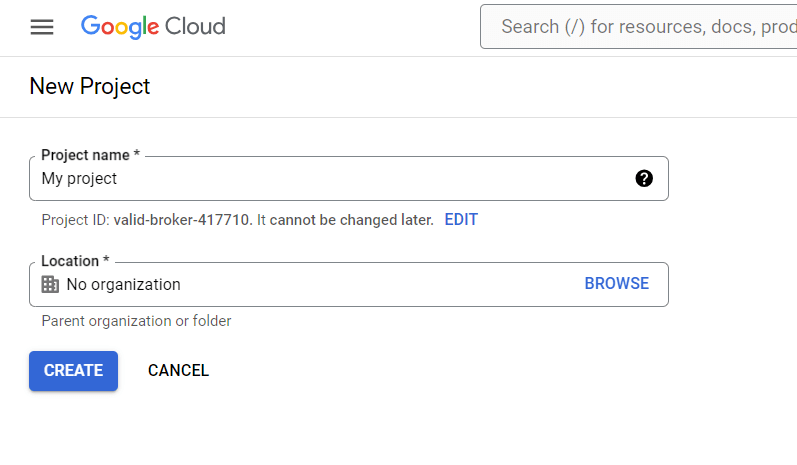
- Navigate to Google Cloud Console and create a new project.
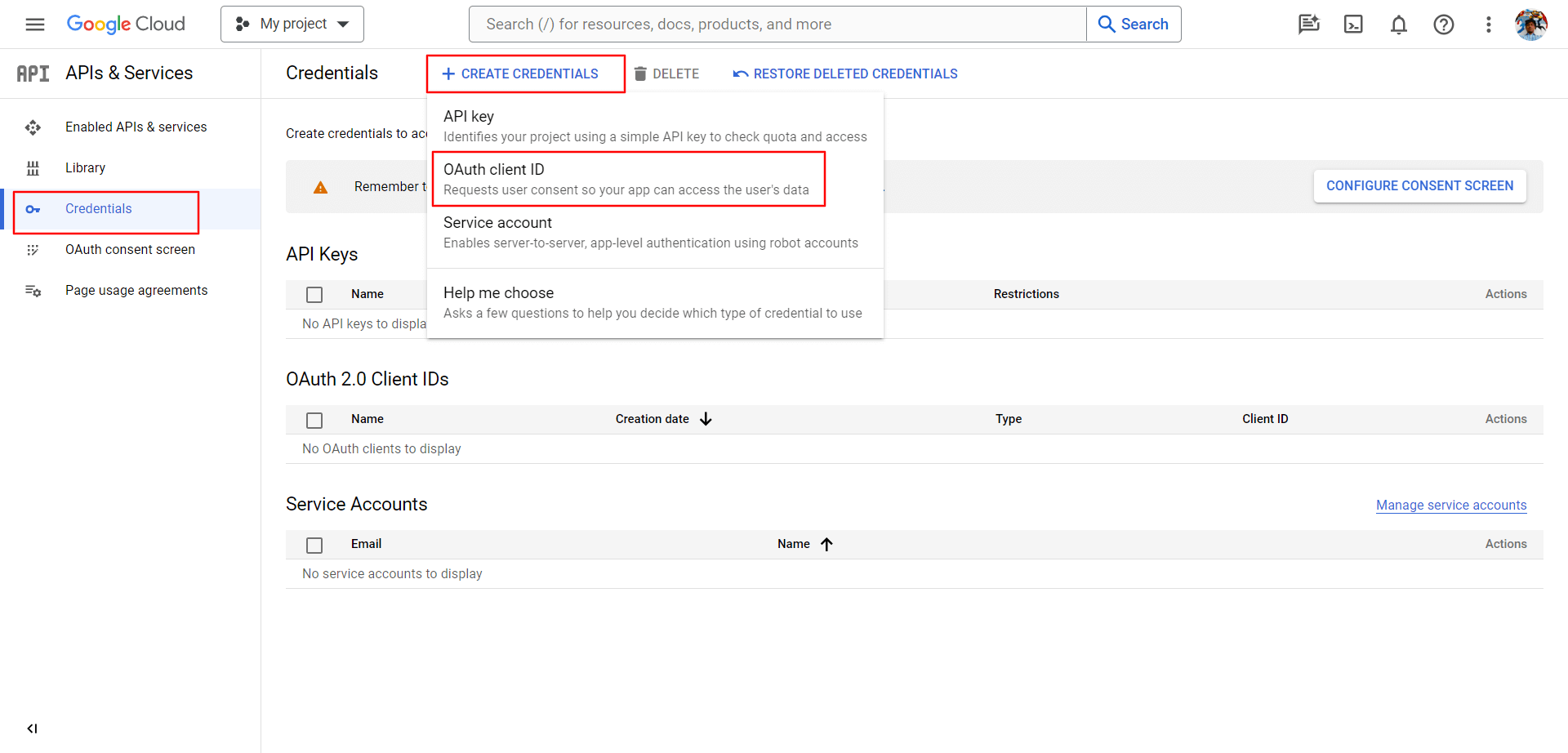
- Go to Credentials and create an OAuth Client ID.
- Click Configure Consent Screen, select External, and complete the required information.
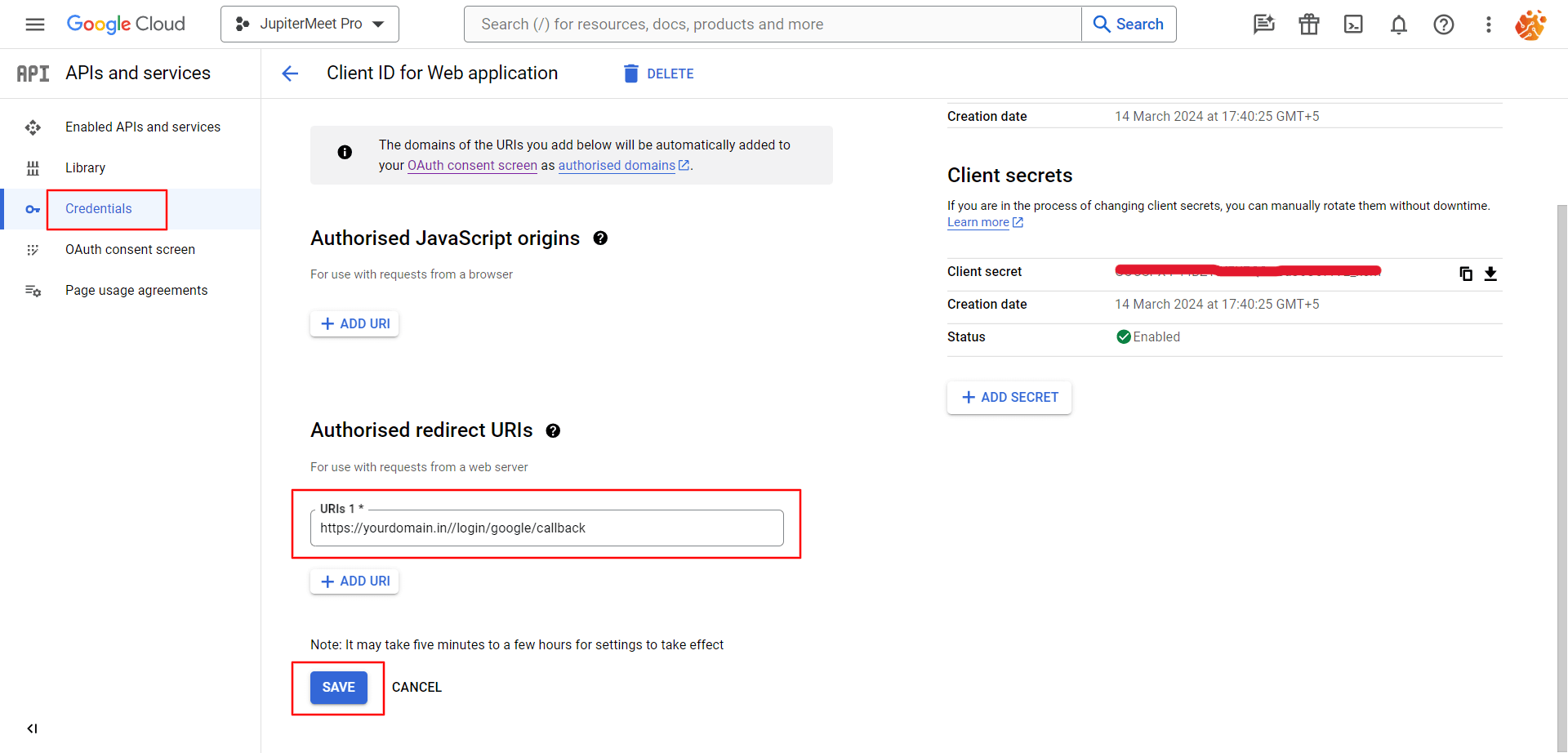
- In the Authorized redirect URIs, paste the Callback URL found in the global config section.
- Click Save.
Facebook Login
- Navigate to Facebook Developers and click Create App.
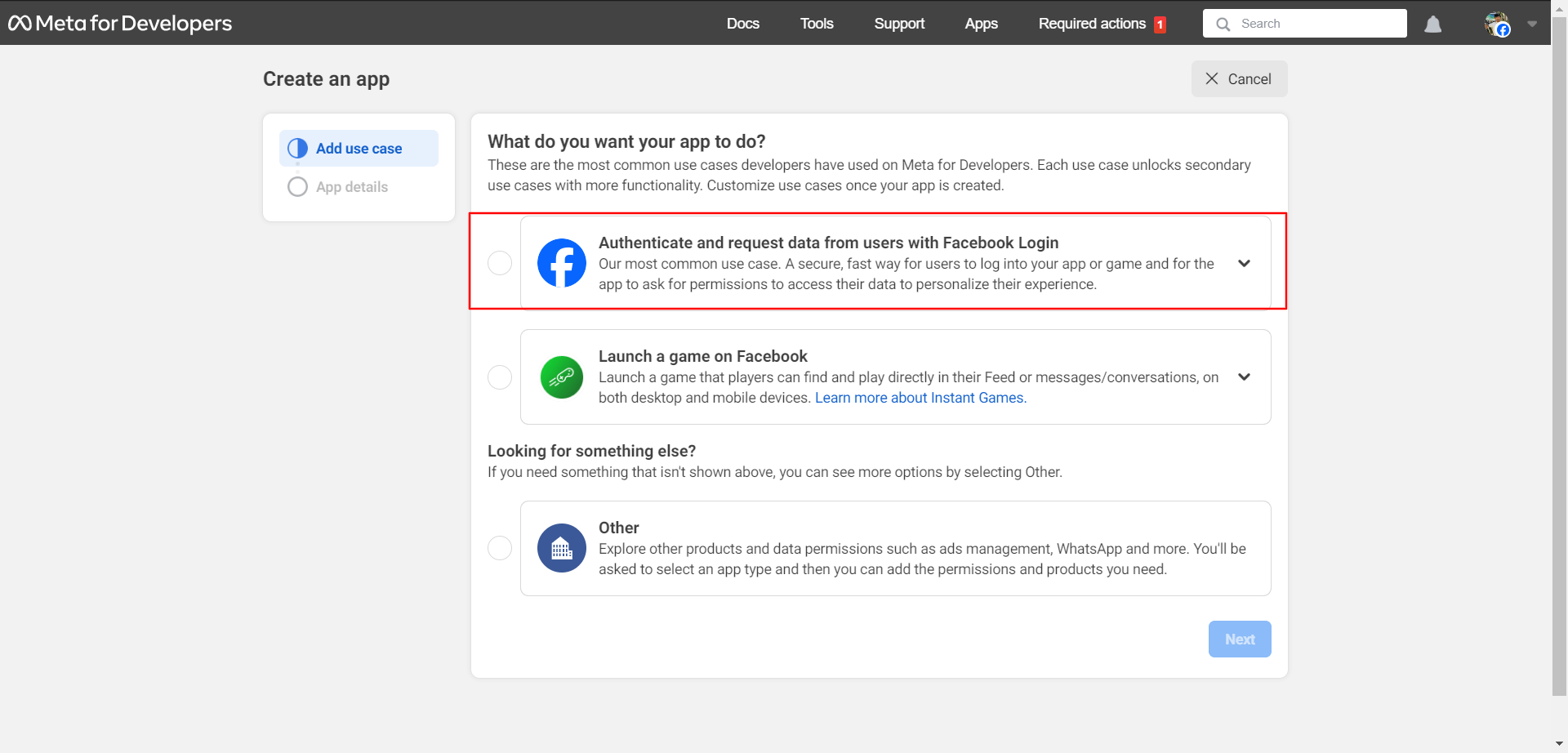
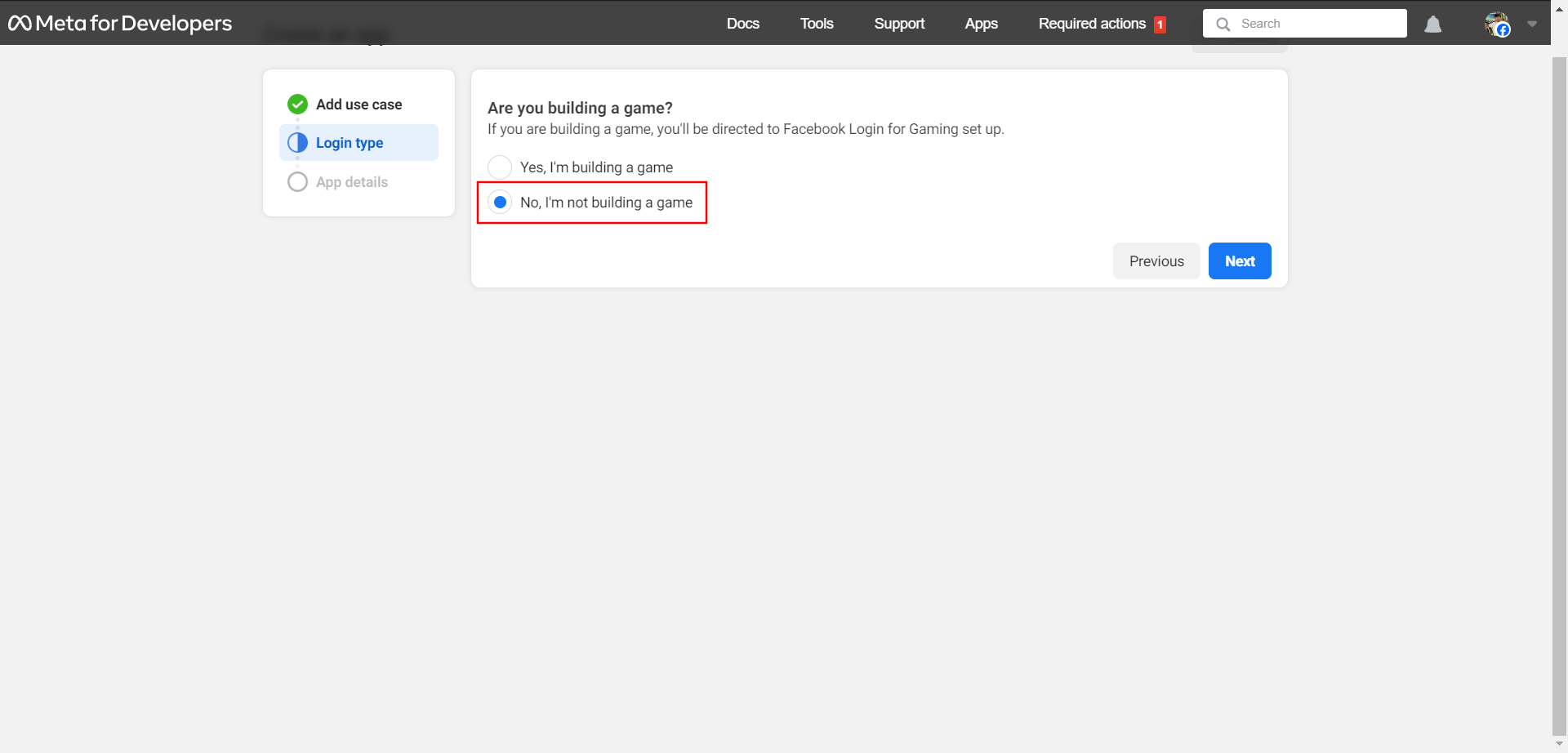
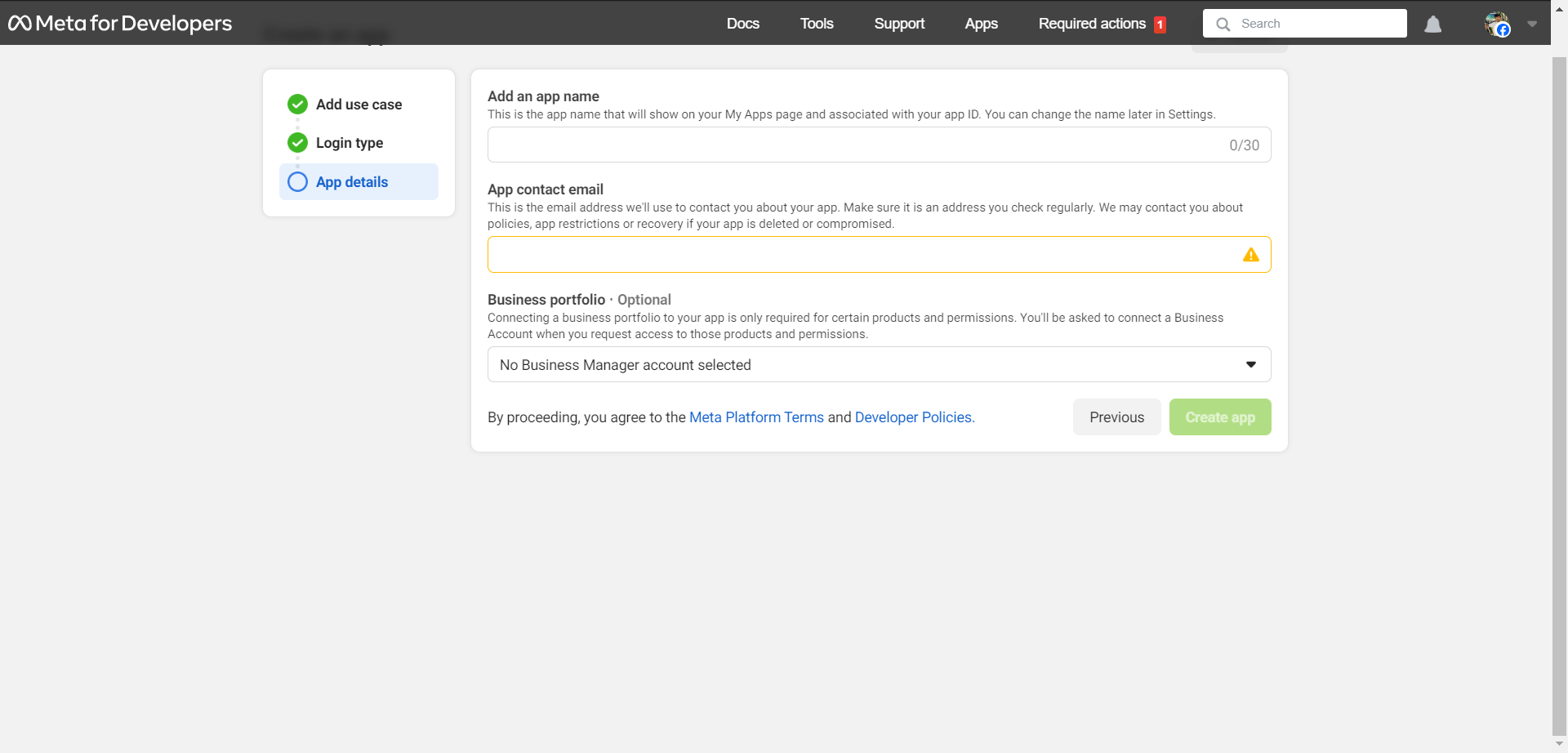
- Fill out the required form and click Create App.
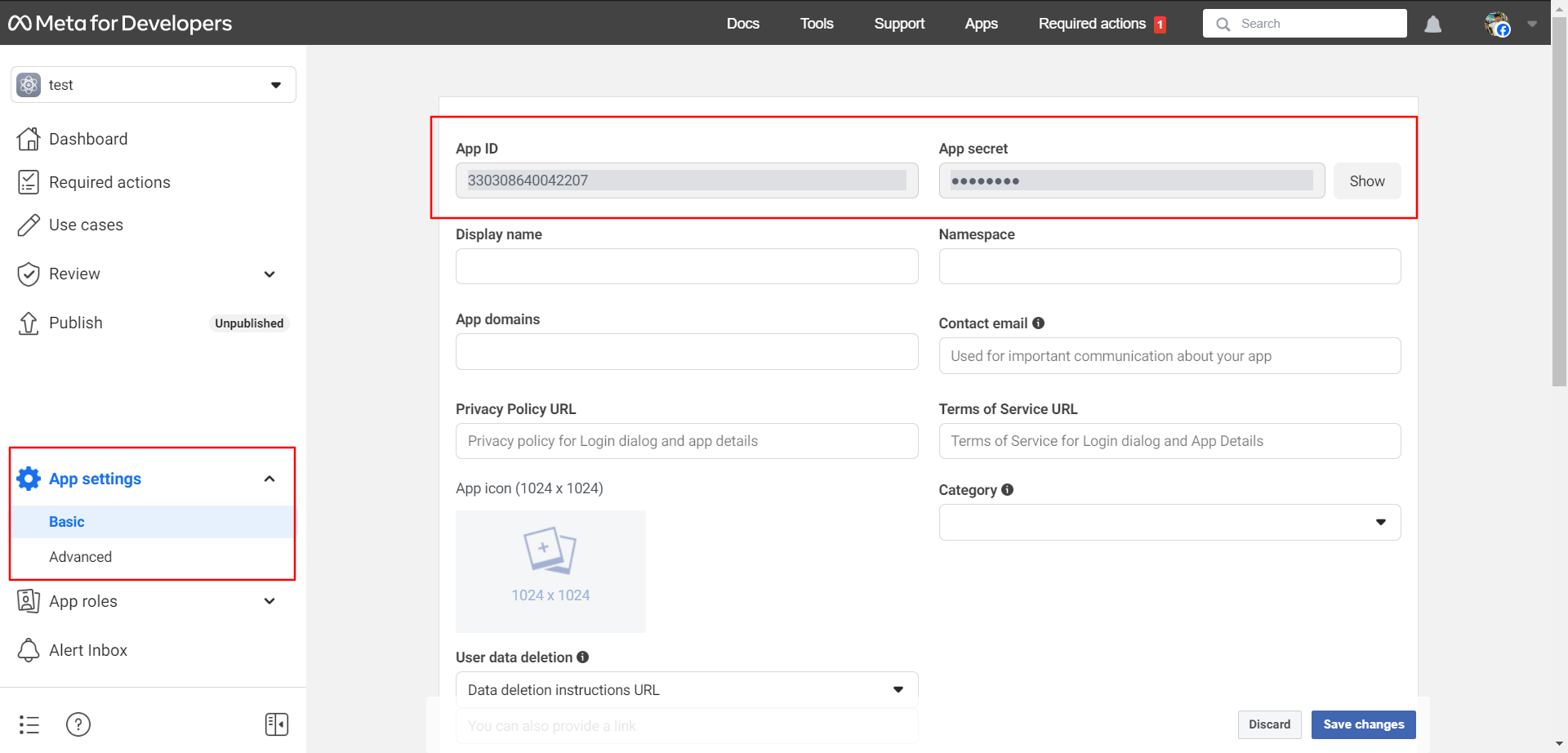
- Copy the App ID and App Secret from the Basic section and paste them in the global config section.
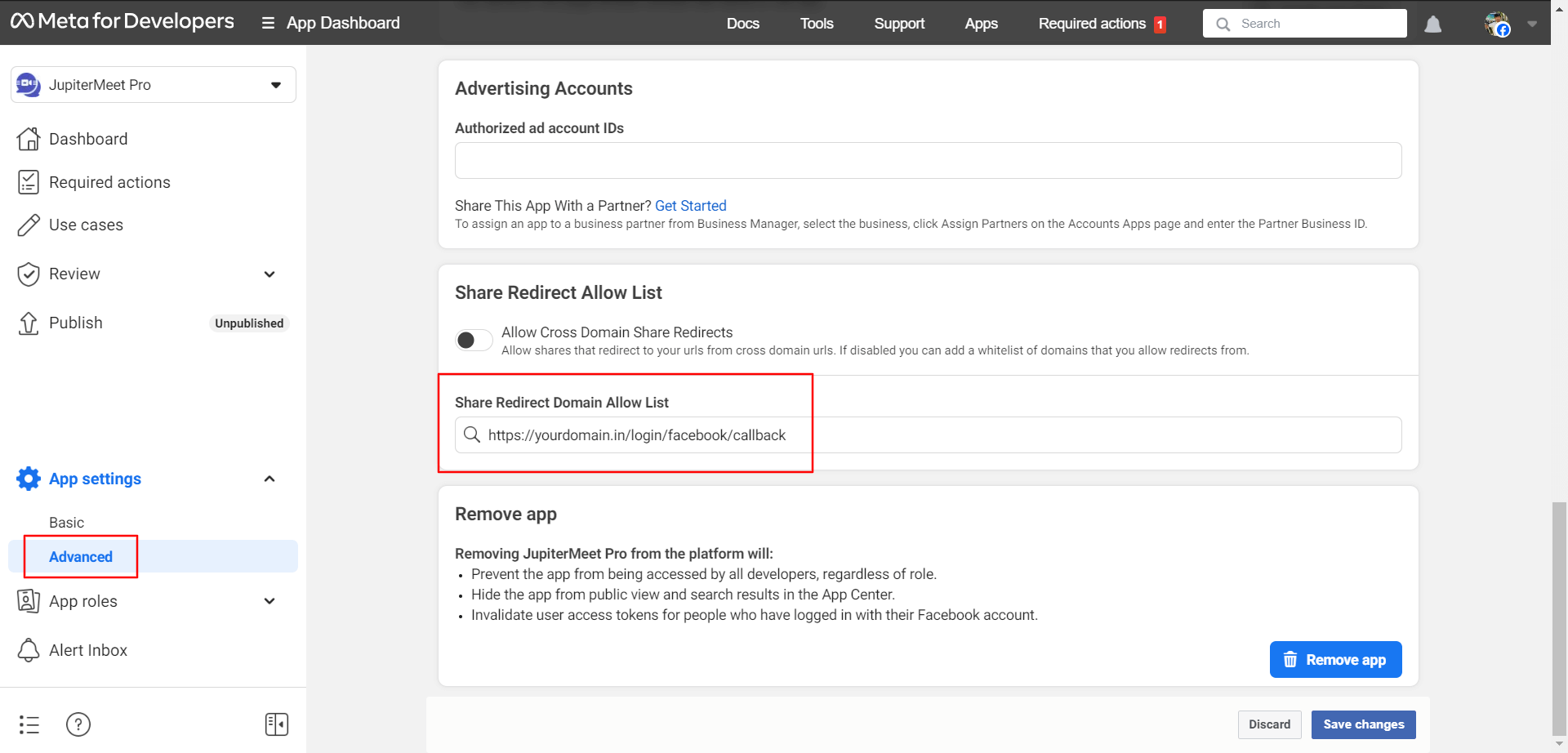
- Copy the Callback URL from global config and paste it in the Facebook redirect section, then save.
LinkedIn Login
- Navigate to LinkedIn Developers and click Create App.
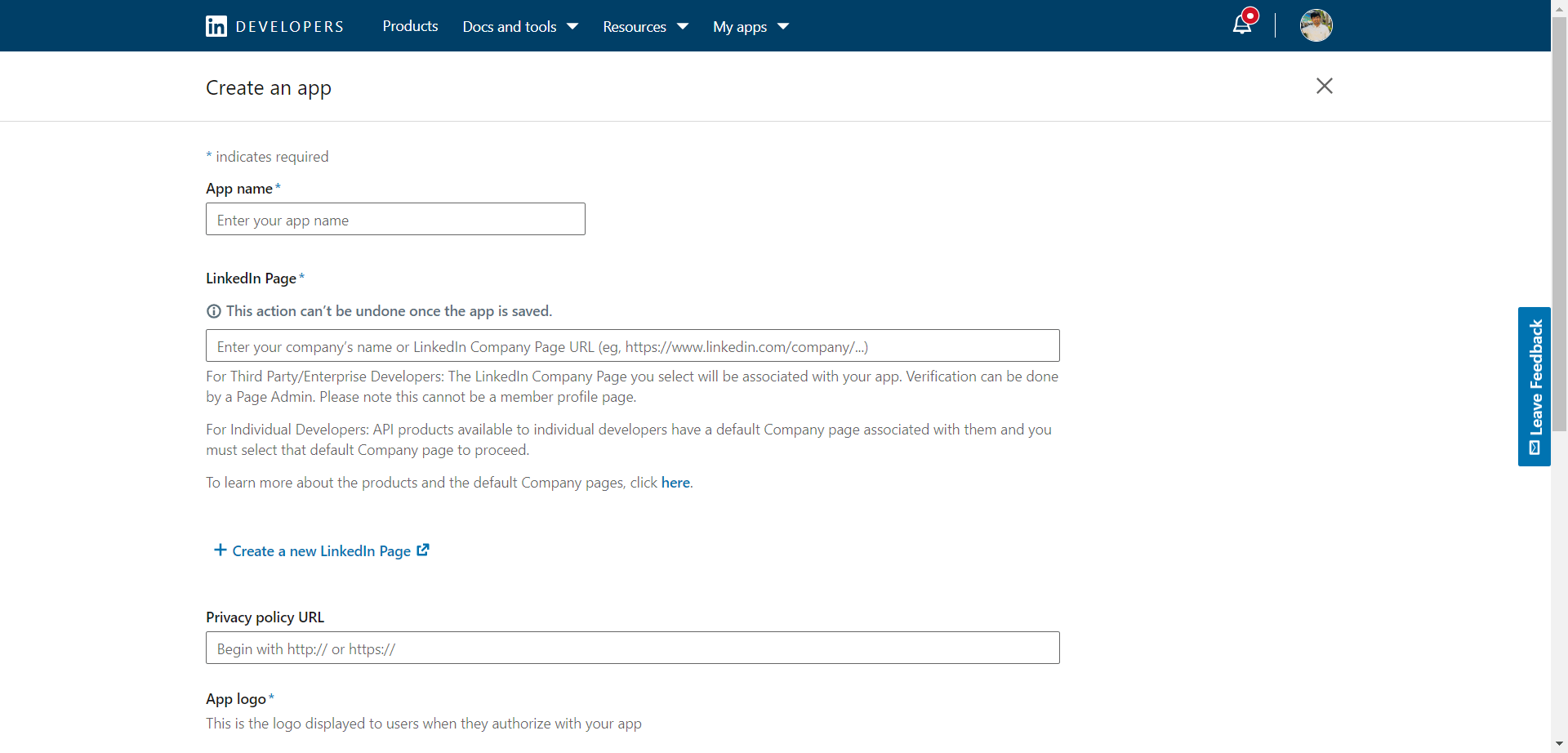
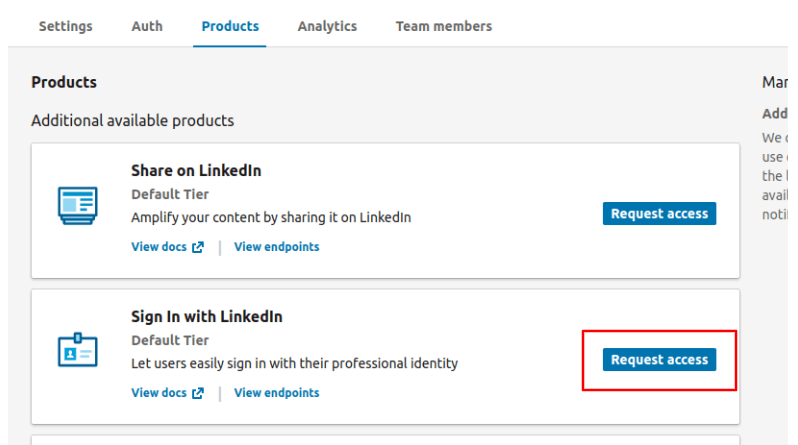
- Fill in the required details and choose Sign in with LinkedIn.
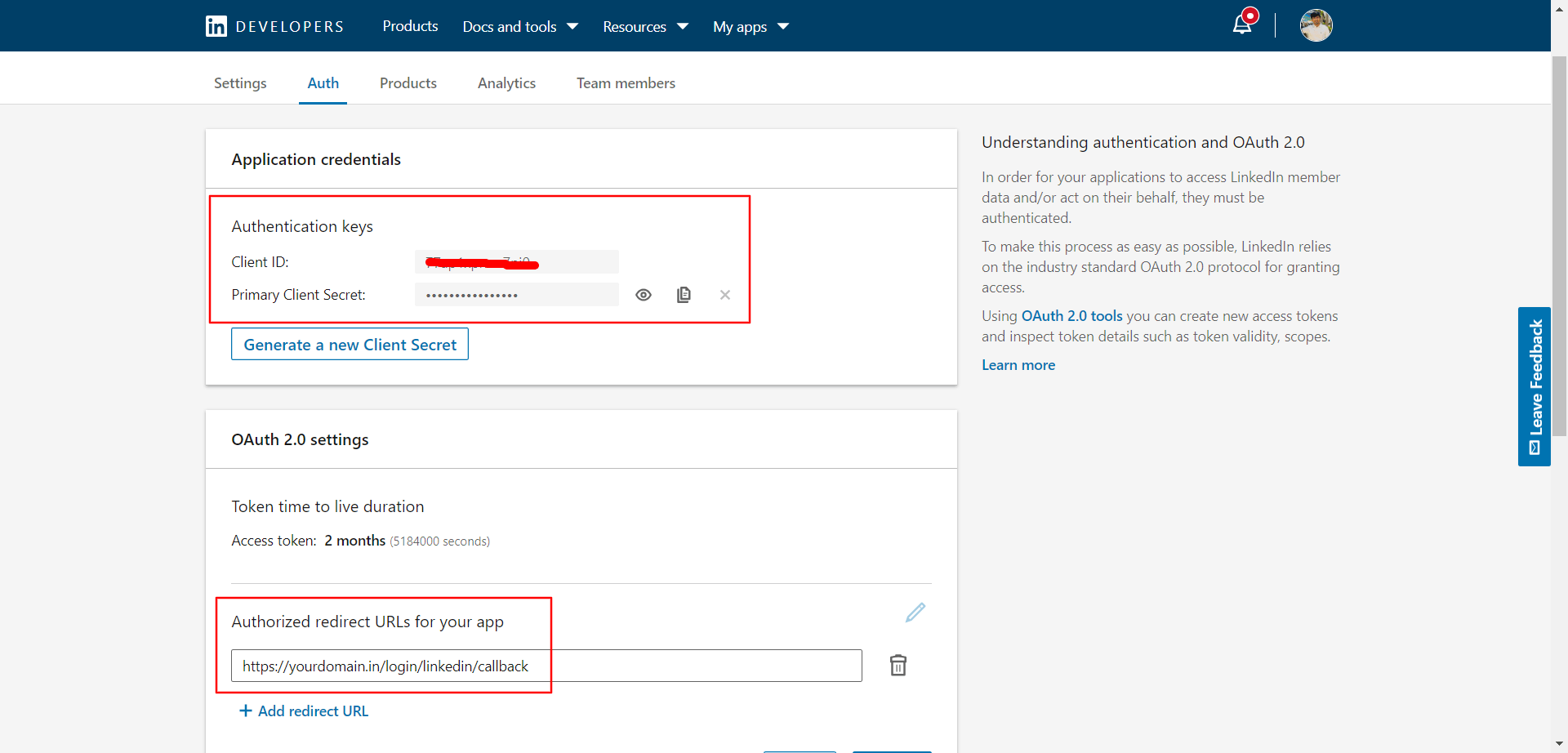
Go to the Auth section, copy the Client ID and Secret, and paste them into the global config.
Add your Redirect URL in LinkedIn settings as shown.
Twitter Login
- Go to Twitter Developer Portal and click Add project.
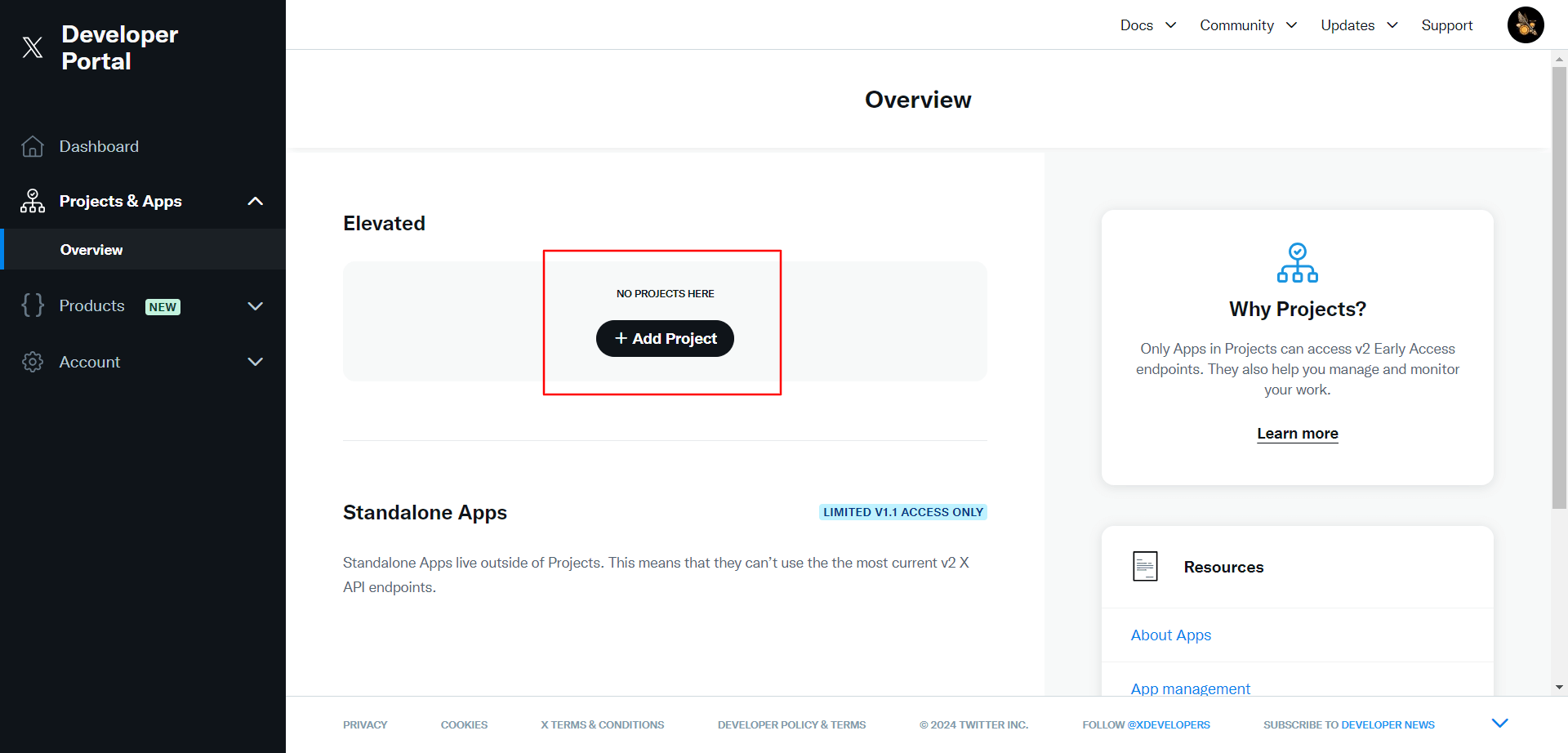
- Fill in the required details.
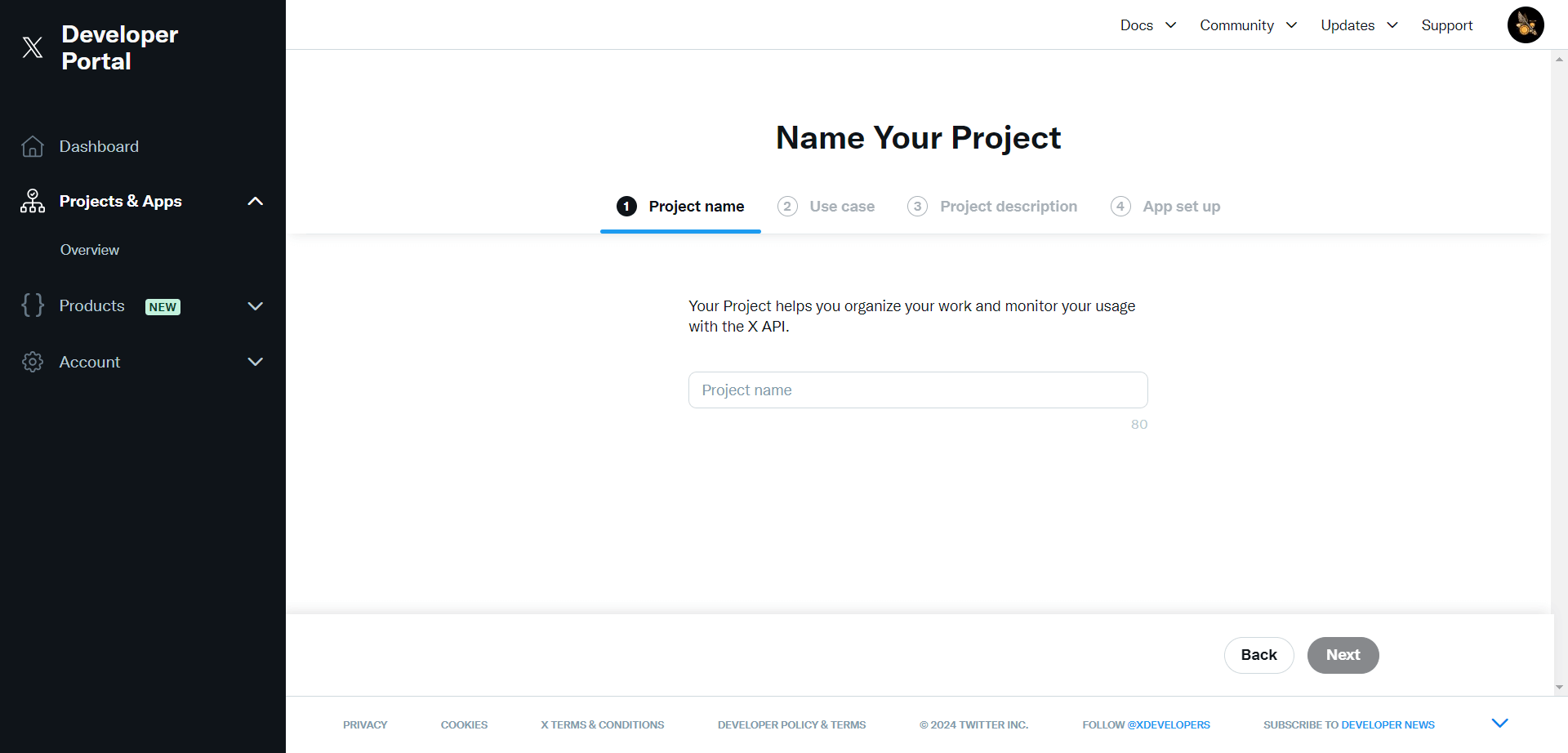
Copy the API Key and Secret and paste them into the global config section.
Click Set up.
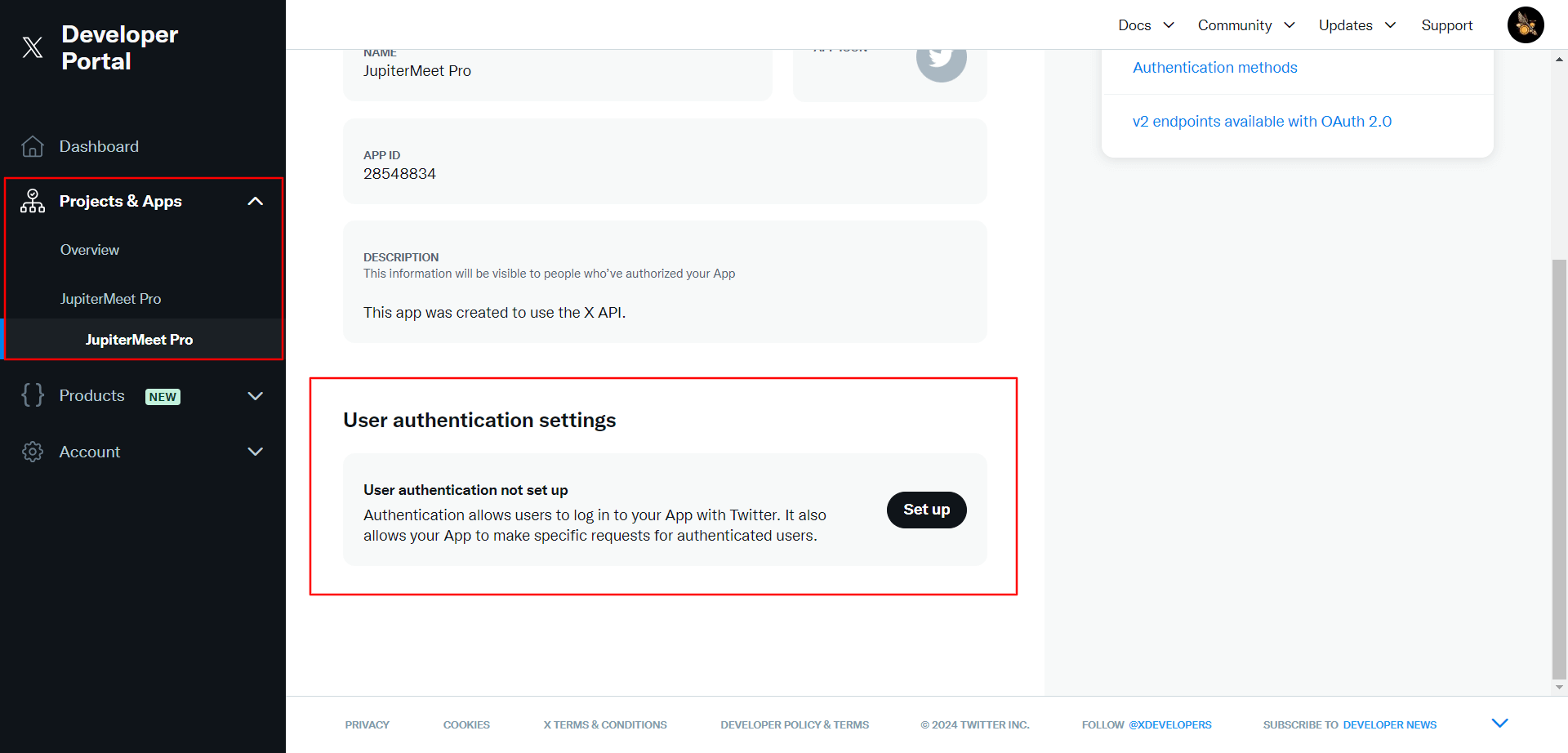
On the next screen:
- Set App permissions to Read.
- Choose Type of App as Web App.
- Paste the Callback URL in the App info section.
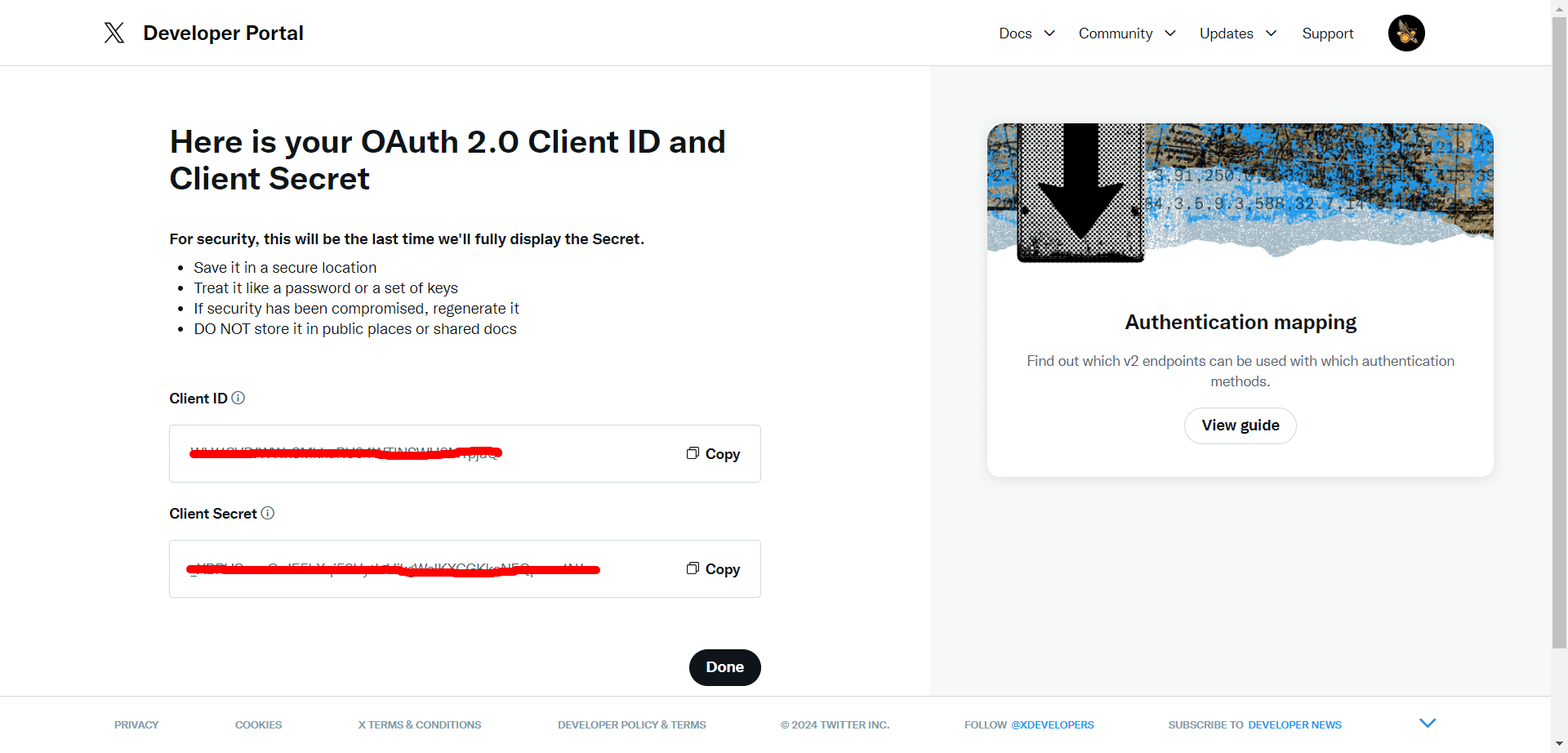
Copy the Client ID and Secret, and paste them into the global config section.