
After registering the addon in JupiterMeet, the final step is to configure it.
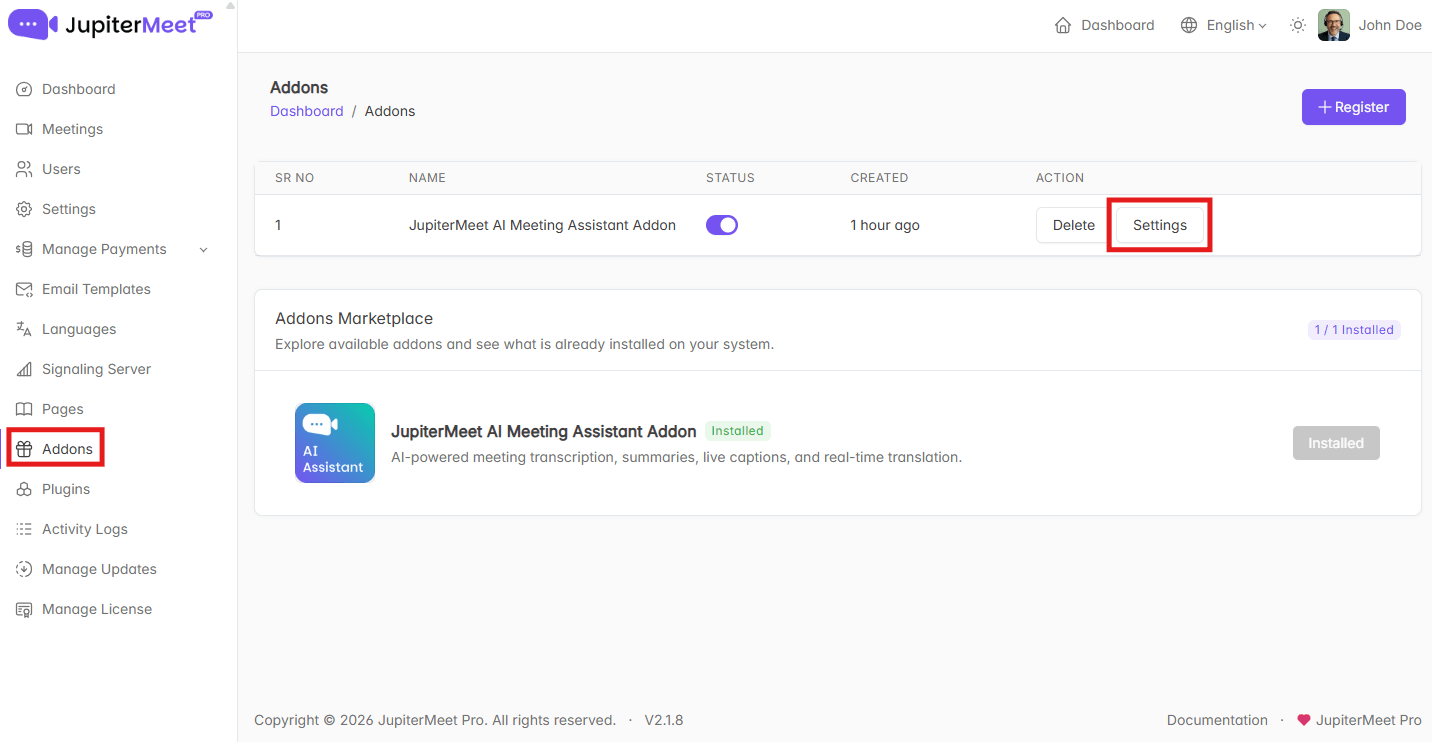
- Navigate to: JupiterMeet Admin Panel > Addon and click on Settings button..
- A settings form will be displayed with the following fields:
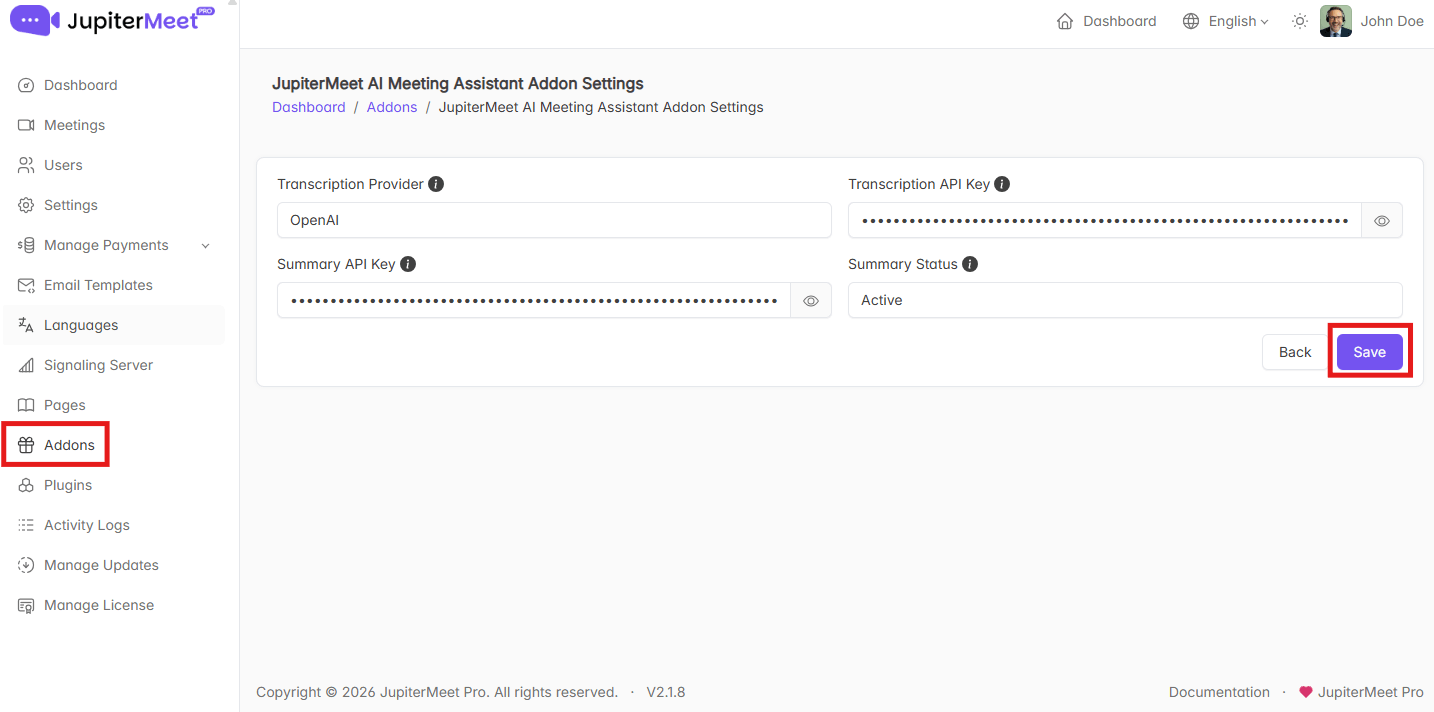
Transcription Provider
Select the transcription provider.
For now, keep it set to OpenAI.Transcription Key
Enter your OpenAI API key which will be used for real-time transcription.Summary Key
Enter your OpenAI API key which will be used for generating AI summaries.tip
You can use the same API key for both transcription and summary.
Summary Status
Set the status to Active to generate AI summaries after meetings.
Set it to Inactive if you do not want to generate summaries.
- Save the configuration.
Once the settings are saved, the AI Meeting Assistant Addon will be ready for use within JupiterMeet.