
After registering the plugin in JupiterMeet, the final step is to configure it in the Support Board admin panel.
Log in to the Support Board Admin Panel.
Navigate to: Support Board Admin Panel > Settings > JupiterMeet. You will see the following configuration fields:
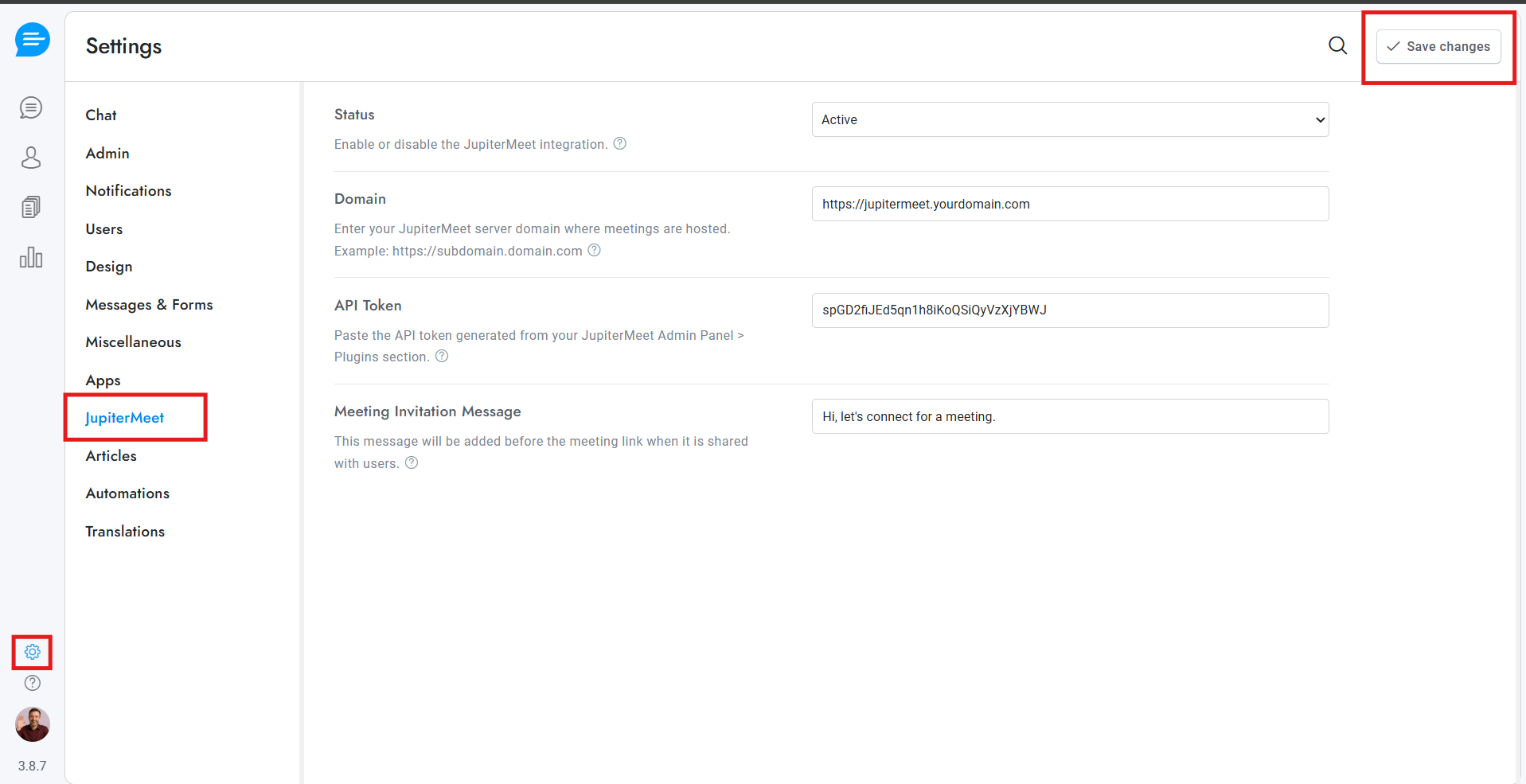
Status
Set the plugin status to Active or Inactive.Domain
Enter your JupiterMeet domain, including the protocol (https).
Example: https://jupitermeet.yourdomain.comAPI Token
Paste the API token copied during the plugin registration step in the JupiterMeet admin panel.Meeting Invitation Message
Enter the message that will be used when sending a video meeting invitation to clients.
- Save the configuration.
Once the settings are saved and the plugin status is set to Active, the JupiterMeet integration will be ready for use within Support Board.