
The JupiterMeet plugin follows a simple workflow to manage and display meetings on your WordPress website.
Once the plugin is installed and configured, meetings can be synced, created, edited and deleted directly from the WordPress admin panel.
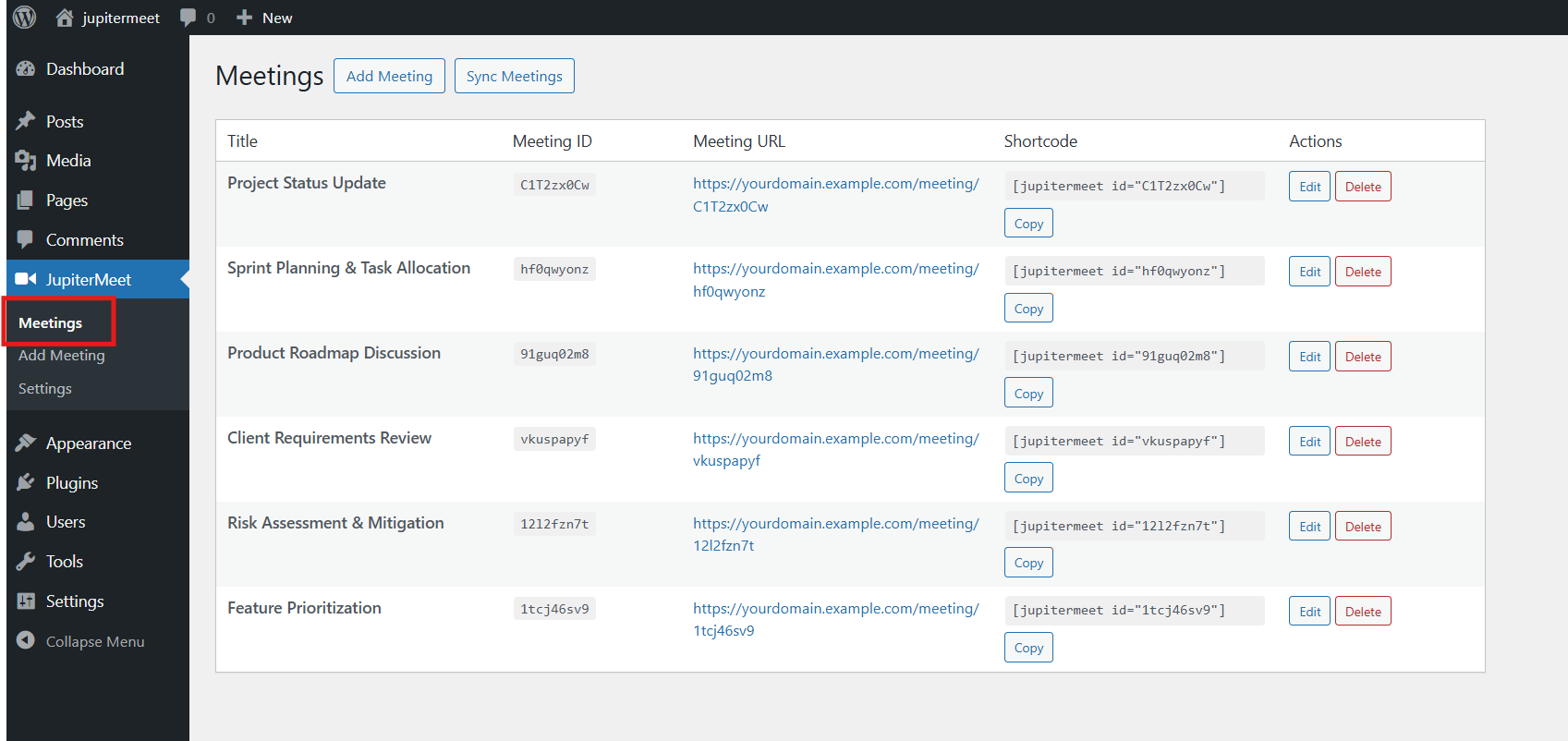
Navigate to: JupiterMeet → Meetings.
From this section, you can perform the following actions:
Sync Meetings
Fetch all available meetings from your JupiterMeet server and store them locally in WordPress.Add Meeting
Create a new meeting directly from the WordPress admin panel.
The meeting is created on your JupiterMeet server and stored locally for reference.Edit Meeting
Edit a meeting from both the JupiterMeet server and WordPress.Delete Meeting
Remove a meeting from both the JupiterMeet server and WordPress.
Each meeting listed will have a unique shortcode assigned to it.
Example:
[jupitermeet id="htujge"]- Copy the shortcode and paste it into any page or post where you want the meeting to appear.
Navigate to: Pages → Add New or edit an existing page.
Insert the shortcode into the content area.
Once the page is published or updated, the meeting will be displayed on the frontend using an embedded iframe.
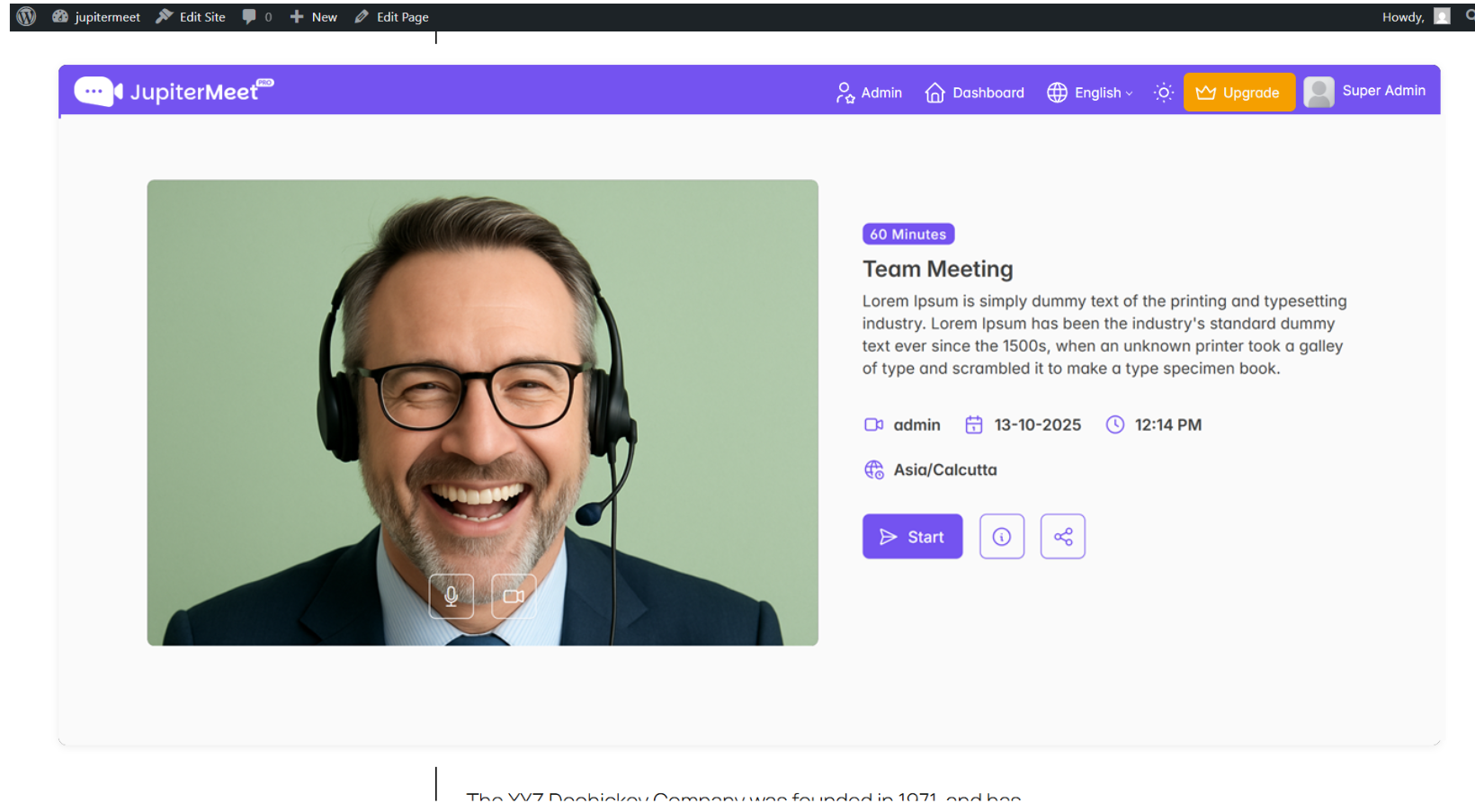
The plugin acts as a bridge between WordPress and your JupiterMeet server, allowing seamless meeting management and display from a single interface.